





Uploading 20 products manually feels manageable.
Uploading 2,000? That’s where most sellers hit a wall.
We’ve seen teams confidently expand their catalog, only to realize halfway through that their listings are inconsistent, variations are broken, and images aren’t syncing. One retailer even paused their entire Amazon store for 5 days because a bulk upload overwrote key product data.
Bulk uploading isn’t just about speed—it’s about control.
Let’s break down how to do it properly.
When Bulk Upload Becomes Necessary
You don’t really choose bulk uploads. You’re forced into it when:
- Your SKU count crosses 100+
- You start selling in multiple categories
- You migrate from Shopify, WooCommerce, or another platform
- You onboard suppliers with large catalogs
- You expand internationally
At that point, manual listing becomes risky—not just slow.
What Actually Goes Wrong in Bulk Uploads
Before getting into the “how,” it’s worth understanding the real problems sellers face:
1. Variation Relationships Break
Parent-child listings disconnect because of incorrect theme or SKU mapping.
2. Data Overwrites
Existing listings get overwritten unintentionally—titles, bullets, even pricing.
3. Missing Required Fields
Amazon silently rejects rows if required attributes are missing.
4. Category Mismatch
Uploading with the wrong template leads to partial uploads or suppressed listings.
5. Image Failures
Image URLs don’t sync properly, especially when hosted incorrectly.
Most guides skip this reality. But this is where bulk uploads fail in practice.
Understanding Amazon Flat Files (Without the Confusion)
Amazon doesn’t make this simple.
Instead of a clean interface, you work with inventory file templates (flat files)—basically structured spreadsheets.
Each category has its own template.
Inside, you’ll find:
- Required fields (non-negotiable)
- Recommended fields (affects ranking)
- Optional fields (enhances listing quality)
The problem?
Many fields look optional but actually impact visibility, compliance, or indexing.
Step-by-Step: Real Workflow for Bulk Uploading Products
This is the workflow we’ve seen work consistently across large catalogs.
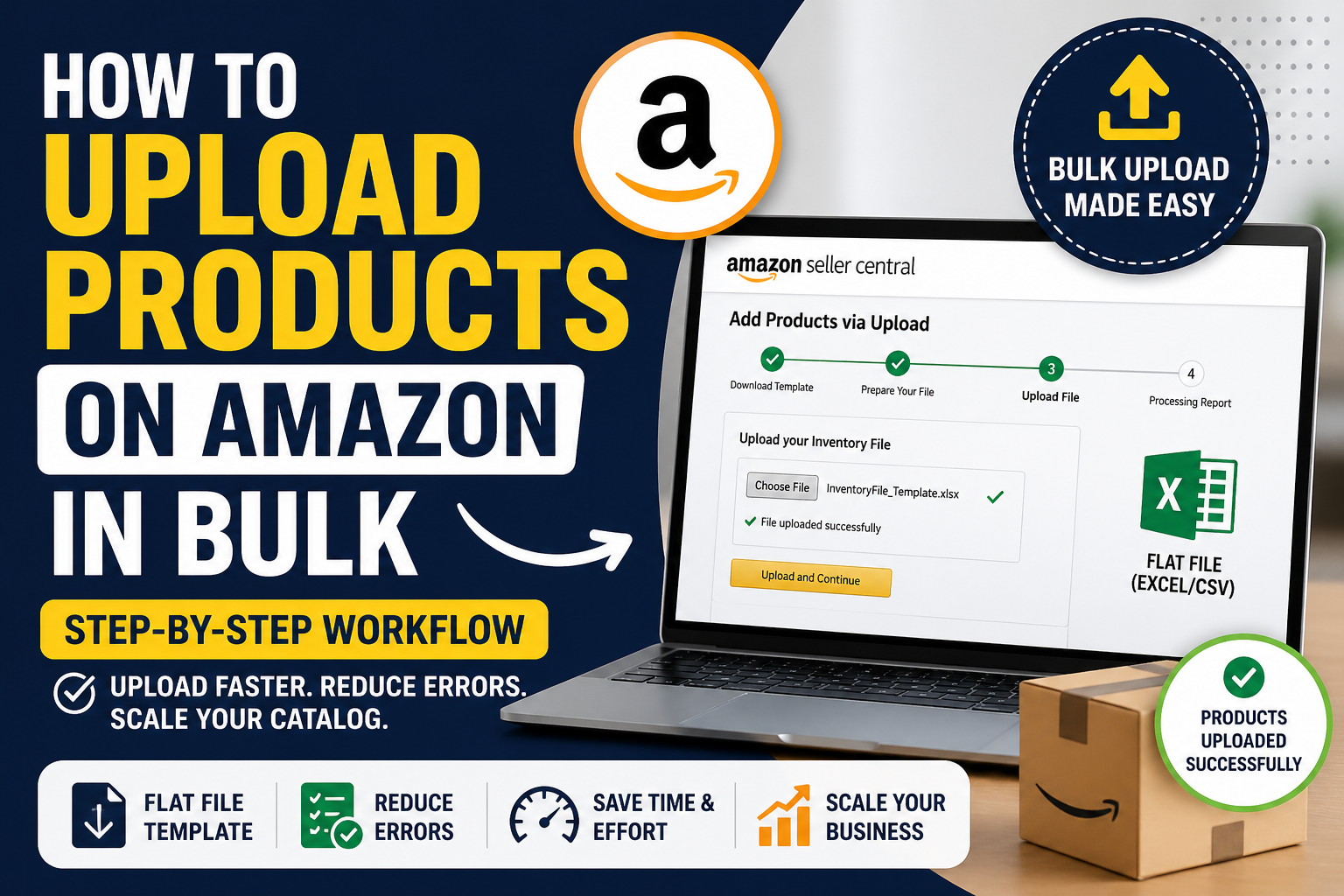
Step 1: Choose the Right Template
Inside Seller Central:
- Go to Catalog → Add Products via Upload
- Select your product category
- Download the latest template
Avoid reusing old templates—they change often.
Step 2: Clean Your Raw Data First
Before touching the template, organize your product data:
- Product titles
- Descriptions
- Bullet points
- SKU structure
- Pricing
- Image URLs
If your raw data is messy, your upload will fail. Guaranteed.
Step 3: Map Your Data Properly
This is where most mistakes happen.
You need to align your data with Amazon fields like:
item_skuproduct_idproduct_id_typeitem_namebrand_namemanufacturerrecommended_browse_nodes
Even a small mismatch can cause rejection.
Step 4: Handle Variations Carefully
If your products have variations (size, color, etc.):
- Define a parent SKU
- Assign child SKUs
- Use correct variation theme (e.g., Size, Color, SizeColor)
This structure must be perfect. There’s no partial success here.
Step 5: Upload the File
- Go to Upload your Inventory File
- Submit the file
- Wait for processing (can take minutes to hours)
Step 6: Review Processing Report
This step is often ignored—and it shouldn’t be.
Amazon generates a report showing:
- Errors (must fix)
- Warnings (should fix)
- Successful uploads
Download it and go line by line.
Where Most Sellers Lose Time
Bulk uploads aren’t difficult—they’re fragile.
Here’s where teams burn hours:
Fixing Errors One by One
Instead of fixing issues at the template level.
Re-uploading Entire Files
Instead of isolating problematic SKUs.
Ignoring Partial Failures
Some listings go live, others don’t—and nobody notices.
No SKU Naming Logic
Which leads to chaos when updating inventory later.
At India Data Entry Services, we’ve seen teams spend weeks debugging what could have been avoided with structured workflows.
Case Scenario: When Bulk Upload Goes Wrong
A mid-sized electronics seller attempted to upload 8,000 SKUs.
What happened?
- 30% listings failed due to missing browse nodes
- Variations broke across 200+ products
- Pricing didn’t reflect correctly in multiple SKUs
Their internal team kept re-uploading the same file, expecting different results.
The fix?
- Rebuilt the template from scratch
- Standardized SKU structure
- Split uploads into smaller batches
- Validated required fields before submission
Within 48 hours, the catalog was stable.
The lesson: bulk upload is not just a technical task—it’s a data discipline.
Tools & Systems That Make Scaling Easier
If you’re handling large catalogs regularly, consider:
1. Excel with Validation Rules
Helps prevent missing required fields.
2. Google Sheets for Collaboration
Useful when multiple team members manage data.
3. PIM (Product Information Management) Systems
For very large catalogs (10,000+ SKUs).
4. Image Hosting Platforms
Ensure stable, publicly accessible image URLs.
Final Checklist Before Uploading
Before you hit upload, double-check:
- All required fields are filled
- No duplicate SKUs
- Variation structure is correct
- Image URLs are working
- Category is accurate
- File format matches Amazon requirements
Skipping this step is where most issues begin.
FAQs
1. Can I upload products on Amazon using CSV?
Yes, Amazon bulk uploads are done using flat files (CSV or Excel templates).
2. How many products can I upload at once?
There’s no strict limit, but large files should be split to avoid processing issues.
3. Why are my products not appearing after upload?
Common reasons include missing required fields, category mismatch, or suppressed listings.
4. Can I update existing listings using bulk upload?
Yes, you can update pricing, inventory, descriptions, and more using the same templates.
5. What is the biggest mistake in Amazon bulk uploads?
Incorrect variation setup and missing required attributes.
CTA
If your catalog is growing and bulk uploads are starting to feel unpredictable, it’s usually not a platform issue—it’s a data structure issue.
At India Data Entry Services, we’ve worked with sellers managing thousands of SKUs across Amazon, Shopify, and other marketplaces—fixing exactly these kinds of backend challenges.
If you’re planning a large upload or already dealing with listing errors, it might be time to rethink how your catalog is structured before scaling further.
FAQ Schema Questions
- How do I upload products on Amazon in bulk?
- What is Amazon flat file upload?
- Why do Amazon bulk uploads fail?
- How to fix Amazon inventory upload errors?
- Can I upload variations in bulk on Amazon?
Internal Linking Opportunities
- Shopify product upload services page
- Amazon product data entry services page
- eCommerce data entry services homepage
- Blog: fixing CSV upload errors
- Blog: product catalog management best practices