





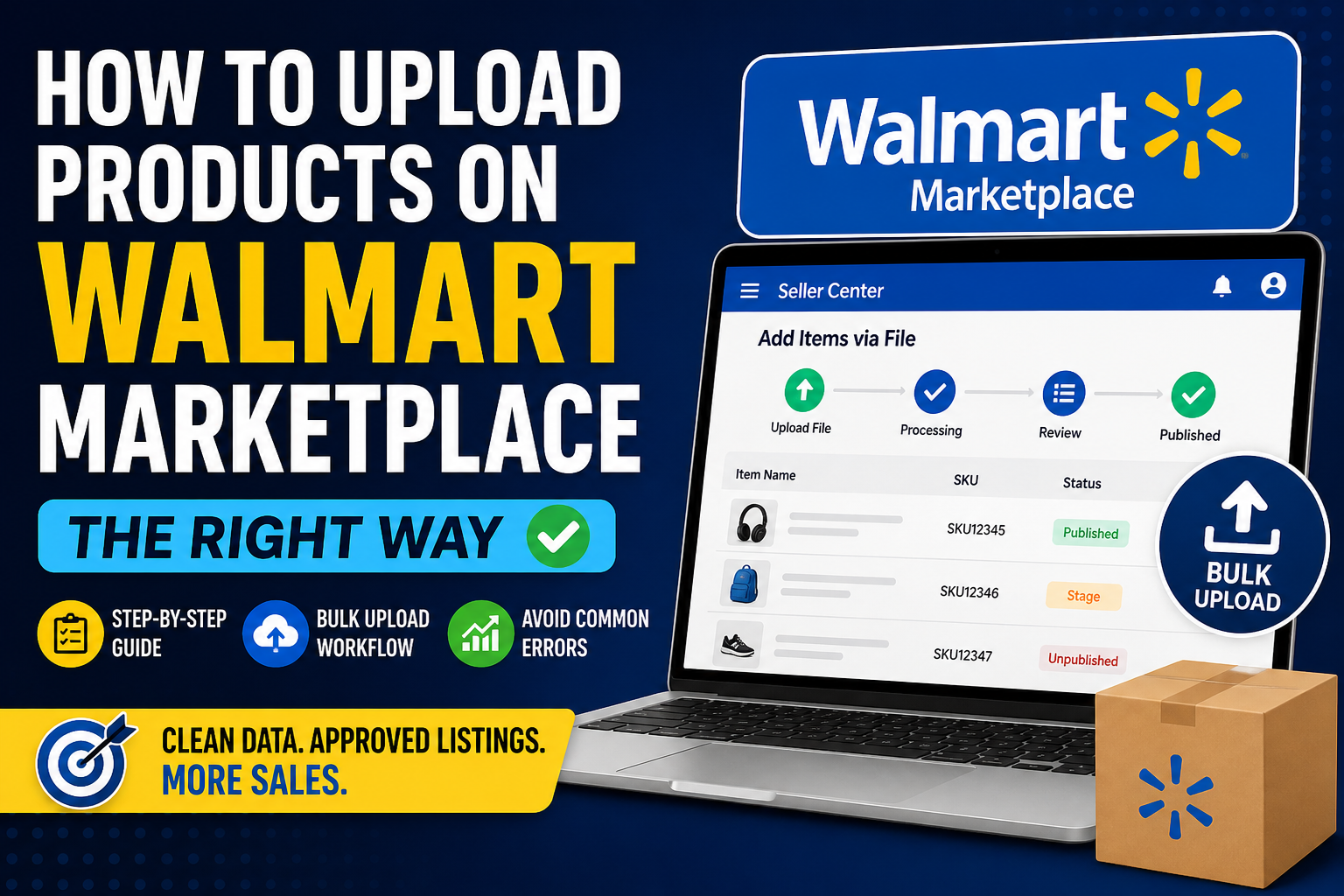
A seller recently moved 8,000 SKUs from their website to Walmart Marketplace.
They assumed it would take a few days.
It took three weeks.
Not because Walmart is complicated—but because their product data wasn’t structured correctly. Variants broke. Images didn’t sync. Half the listings went into “stage” instead of going live.
Uploading products isn’t the hard part.
Getting them approved, searchable, and consistent—that’s where most teams get stuck.
Let’s walk through how to upload products on Walmart Marketplace the right way.
Why Most Walmart Product Uploads Go Wrong
Uploading a few items manually feels simple.
Uploading at scale exposes issues like:
- Missing required attributes (GTIN, product type, shelf description)
- Incorrect category mapping
- Variant relationships not linking properly
- Image URL formatting issues
- Inventory mismatch errors
Walmart is stricter than platforms like Shopify.
It behaves more like Amazon when it comes to structured data.
If your catalog isn’t clean, uploads don’t fail immediately—they fail silently.
Understanding Walmart’s Product Data Structure
Before uploading anything, you need to understand how Walmart organizes product data.
Every product listing requires:
- Product identifiers (GTIN/UPC/EAN)
- Category-specific attributes
- Product title & descriptions
- Key features (bullets)
- Images (hosted URLs)
- Price and inventory
- Shipping details
Unlike Shopify, where you can freestyle listings, Walmart enforces structured data per category.
This means:
Uploading the same product in the wrong category = rejection or invisibility.
Two Ways to Upload Products on Walmart Marketplace
1. Manual Upload (For Small Catalogs)
Best for:
- Testing listings
- Adding a few products
- First-time sellers
You create products directly inside Walmart Seller Center.
Limitations:
- Time-consuming
- High chance of human error
- Not scalable
2. Bulk Upload via Spreadsheet (For Real Businesses)
Best for:
- 50+ SKUs
- Growing catalogs
- Multi-channel sellers
This method uses Walmart’s predefined templates.
You download a category-specific sheet, fill it, and upload.
Reality check:
Most sellers underestimate how complex these templates are.
Step-by-Step: Upload Products Using Walmart Seller Center
Here’s the simplified version of the process:
Step 1: Log into Seller Center
Go to your Walmart Seller Center dashboard.
Step 2: Navigate to “Add Items”
Choose whether you want to:
- Add a single item
- Upload via file
Step 3: Select Product Category
This step matters more than people think.
Each category has:
- Different required fields
- Different validation rules
Step 4: Fill Product Details
Include:
- Product name (clear, not keyword stuffed)
- Brand
- Short & long descriptions
- Key features
- Main image URL
Step 5: Add Identifiers
You must include:
- UPC / GTIN / EAN
No identifier = no listing approval (in most cases)
Step 6: Set Price & Inventory
- Price
- Available quantity
- Fulfillment method
Step 7: Submit for Processing
Products don’t go live instantly.
They enter a review + processing stage.
Bulk Upload Workflow (What Actually Works at Scale)
Uploading 500–10,000 products isn’t about filling a sheet.
It’s about managing data correctly before uploading.
Here’s the workflow most experienced teams follow:
1. Normalize Product Data First
Before touching Walmart templates:
- Clean titles
- Standardize attributes
- Fix missing identifiers
- Organize variants
2. Use Category Templates Properly
Each category sheet includes:
- Required fields
- Optional enhancements
- Validation rules
Ignoring these leads to upload errors.
3. Validate Before Upload
Smart teams don’t upload blindly.
They:
- Check for missing values
- Verify image URLs
- Test with small batches
4. Upload in Batches
Uploading everything at once increases failure risk.
Better approach:
- Upload 100–500 SKUs
- Check results
- Fix errors
- Repeat
5. Monitor Item Status
After upload:
- Published
- Stage
- Unpublished
Most sellers forget this step.
Half their catalog never goes live—and they don’t notice.
Hidden Errors That Delay Product Publishing
These are the issues that quietly block your listings:
1. Image Hosting Issues
Walmart requires public, accessible image URLs.
Broken or slow-loading links = rejection.
2. Category Mismatch
Wrong category = missing required attributes.
3. Variant Grouping Errors
If parent-child relationships aren’t structured properly:
- Variants won’t link
- Listings appear separately
4. Duplicate Listings
Uploading the same SKU multiple times creates conflicts.
5. Attribute Conflicts
Example:
- Size listed as “Large” in one field
- “L” in another
This causes validation errors.
Walmart vs Shopify vs Amazon Uploads (Quick Comparison)
| Platform | Flexibility | Data Strictness | Best For |
|---|---|---|---|
| Shopify | High | Low | Quick setups |
| Amazon | Medium | Very High | Structured catalogs |
| Walmart | Medium | High | Clean, scalable listings |
Practical Workflow Used by Ecommerce Teams
Here’s what actually works in real operations:
- Prepare master product sheet
- Clean and standardize data
- Map to Walmart template
- Upload in batches
- Fix errors iteratively
- Monitor listing status
- Optimize listings post-publish
This is not a one-time task.
Catalog management is ongoing.
When It Makes Sense to Outsource Product Uploads
If your team is spending:
- Weeks fixing uploads
- Hours troubleshooting errors
- Time re-uploading failed listings
…it’s usually a data problem, not a platform problem.
At India Data Entry Services, we’ve seen sellers waste months trying to fix catalog issues internally—only to realize their product data needed restructuring first.
Another common scenario:
A brand scaling from 500 to 20,000 SKUs.
Manual processes collapse quickly at that stage.
Final Thoughts
Uploading products on Walmart Marketplace is straightforward in theory.
But at scale, it becomes a data management problem—not an upload task.
The sellers who succeed aren’t the ones who upload faster.
They’re the ones who:
- Structure data correctly
- Follow validation rules
- Build repeatable workflows
Once that’s in place, uploads become predictable—not frustrating.
FAQs
1. How long does it take for products to go live on Walmart Marketplace?
Usually between a few minutes to 24 hours, depending on validation and review.
2. Can I upload products to Walmart without a UPC?
In most cases, no. Walmart requires GTIN/UPC unless you have special approval.
3. What is the best way to upload bulk products on Walmart?
Using category-specific templates with cleaned and validated data.
4. Why are my Walmart listings stuck in “Stage”?
This typically means incomplete data or validation errors.
5. Can I edit products after uploading?
Yes, via Seller Center or by re-uploading updated files.
FAQ Schema Questions
- How to upload products on Walmart Marketplace step by step?
- What are Walmart product upload requirements?
- Why are Walmart product listings not going live?
- How to fix Walmart bulk upload errors?
- Can I upload products on Walmart without GTIN?
Internal Link Opportunities
- Shopify product upload services page
- Amazon product listing services
- Data entry services main page
- Product catalog management services
- Blog: Fix Shopify CSV errors
- Blog: Bulk product upload challenges